


Cover image: Apple.
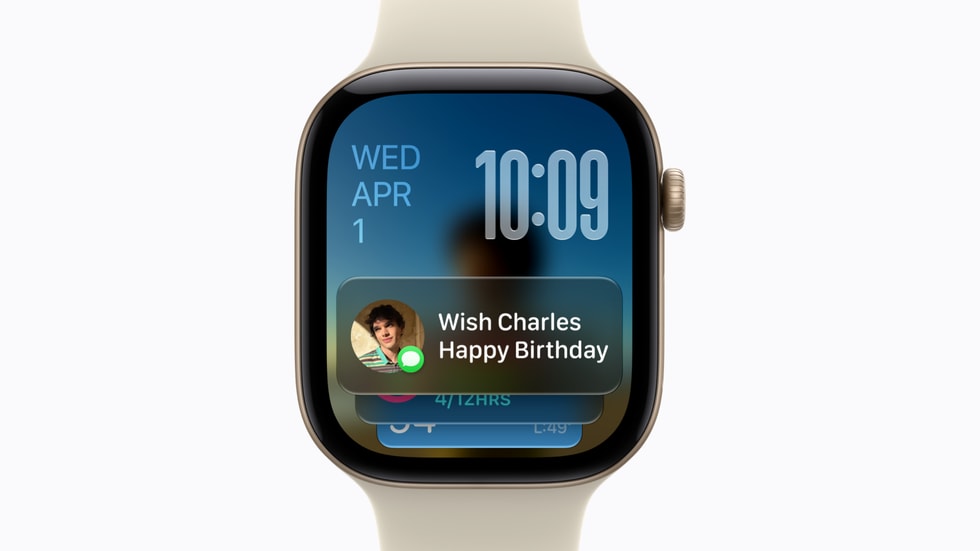
The Apple Watch is most convenient when it shows the right information at the right time. The Smart Stack can help with this without cluttering your watch face with more and more complications. That is why, with watchOS 27, it pays to carefully select your widgets and suggestions.
In this article
What changes with watchOS 27
Apple calls new Smart Stack suggestions, such as for birthdays, your parked car, or alarms around certain holidays. Supported models also get a single-tip gesture for selecting a widget. Which features you can use depends on your device and the respective requirements. 1
For everyday use, however, the crucial question is not how many cards the stack can display. What matters more is which information you want to grasp in a few seconds and for which task you would rather use your iPhone anyway.

Start with three really useful pieces of information
For your first try, select only a few widgets. One possible combination is your next appointment, the weather for your usual route, and an ongoing activity. Which combination makes sense depends on your daily routine.
Test the selection for a week. Remove a complication if you always skip it. Only add something when you find yourself missing specific information in your normal routine. This is how you create your own manageable stack.
| Everyday situation | Possible focus |
|---|---|
| Many appointments | Next appointment and time remaining |
| Often out walking | Relevant weather information |
| Training or cooking | Ongoing activity or timer |
| Traveling by car | Available information about the parked vehicle |
The examples are suggestions for your combination and no guarantee that every third-party app provides a corresponding widget.
Organize suggestions and notifications separately
A helpful stack answers a glance at the watch. A notification, on the other hand, actively interrupts you. For important apps, consciously decide what kind of attention you want.
A calendar appointment may have a different priority than a general message from a shopping app. Therefore, check not only the widgets but also the notification settings of the apps that appear on the Watch. New system features do not replace this personal selection.

Evaluate gestures by their actual usefulness
One-handed operation can be practical if your other hand is currently busy. First try the supported gesture in a quiet situation and check which card is selected. Apple explicitly assigns the new gestures to the respective supported functionality. 1
If you can manage faster with the Digital Crown and touchscreen, you can continue to use the stack according to your preferred operating routine. An additional method does not have to be the most convenient for every situation.
Clean up deliberately after the update
After major changes to your setup, check whether the Watch still suits your week. Have your working hours, workouts, or frequently used apps changed? Then your selection on your wrist may also need to change.
Also check the requirements for new intelligent features. Apple distinguishes between device, language, region, and, if applicable, the paired iPhone in its software updates. An installed watchOS update alone does not confirm every single feature. 2
The best Smart Stack is one where you rarely have to search. A few relevant pieces of information and selectively chosen interruptions often make the watch more convenient in everyday use than as large a collection of complications as possible.