


Cover image: © Samsung Electronics (press image).
A timer while cooking, a quick reminder on the go, or a question when your hands are full: a voice assistant on your watch can be useful for tasks like these. For this purpose, Samsung is introducing the "Raise to Speak" gesture on the Galaxy Watch 9 and Ultra 2. Its main benefit is not for long conversations, but for small tasks at the right moment.
In this article
What is different about the new gesture
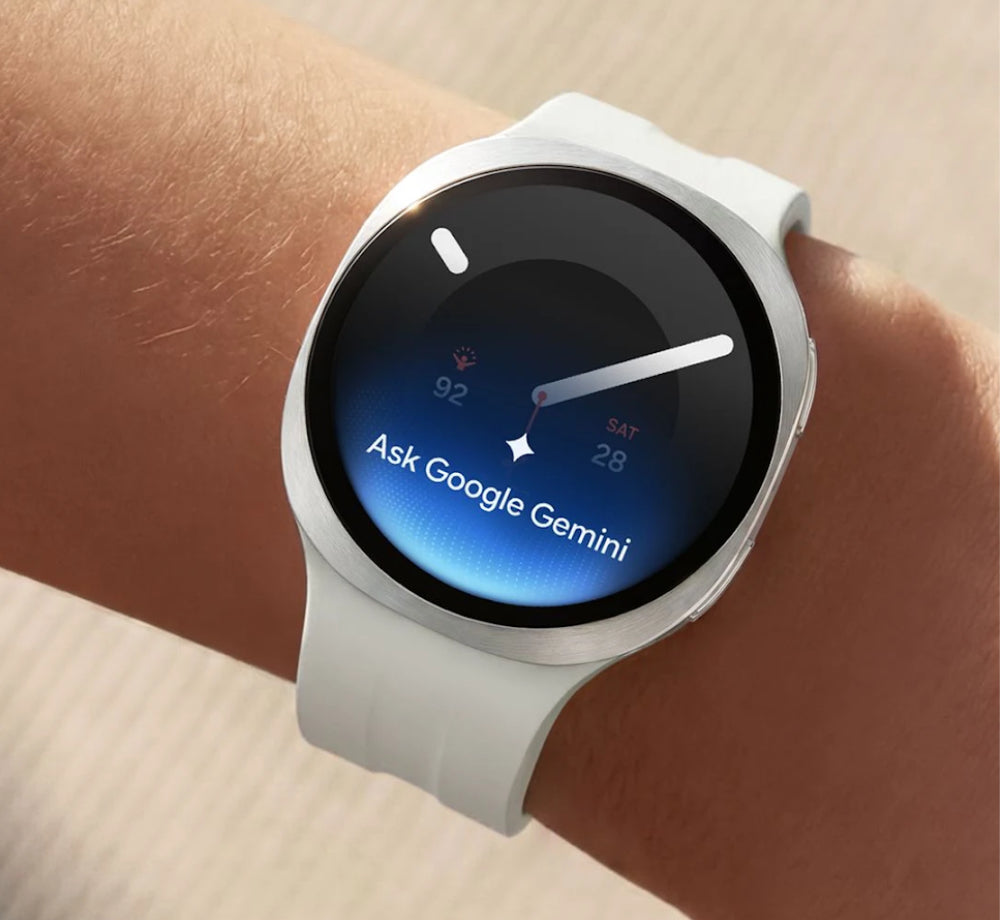
On the supported models, you can launch Gemini by raising the watch and speaking. Once the feature is set up, there is no need to press a button or use an activation phrase. Samsung distinguishes this launch method from earlier supported Galaxy Watches, on which Gemini can still be accessed via a button or voice command. 1
This is a difference in operation. It does not mean that every response will be faster or that every app will automatically be available. Whether you like using the gesture also depends on how often you are in situations where you are free to speak.

Three situations where short commands are helpful
In the kitchen: "Set a timer for eight minutes." A clearly defined task is easier to control than a longer request with multiple conditions. Briefly check the displayed confirmation before returning to your cooking.
On the go: "Remind me about the gym bag this evening." Make the time and task as clear as possible. If multiple calendars or accounts are set up, check where the entry actually ends up.
Before completing a task: Ask for information you want to use immediately, rather than trying to read a long text on the small display. For complex research, the larger smartphone screen is often more convenient.
These are examples of use. Which specific actions work depends on the set up app link and the supported range of features. Samsung's instructions show voice-controlled tasks with calendars and reminders, among others. 2
Carefully setting up accounts and permissions
Gemini requires an internet connection and a Google account. Availability and scope may vary depending on the country, language, model, account, and subscription. 1
First, test a non-critical standard task such as a timer. If you want to use personal information or connected apps, read the relevant settings afterward. Enable access permissions according to your actual tasks. A quick check is more helpful than turning on as many options as possible at once.
For the Watch 8 Classic, Samsung also describes settings for the assistant volume and launching via the Home button. Depending on the watch and software version, the terminology and available launch methods may vary. 2

Where the watch is not the best interface
A voice task may work well in a quiet room but become cumbersome in a noisy environment. You may also not want to speak personal appointments or messages aloud on a crowded train. Therefore, keep a second operating option ready: a button, widget access, or the appropriate smartphone app.
Check important results on the display, especially names, times, and recipients. An assistant is most convenient when you give it manageable tasks and can easily check a confirmation.
A practical start for everyday use
Choose three tasks that occur every week. Set them up and observe for a few days whether the watch really saves you a trip to your phone. This way, you will quickly find out whether the new gesture will become a helpful part of your day.
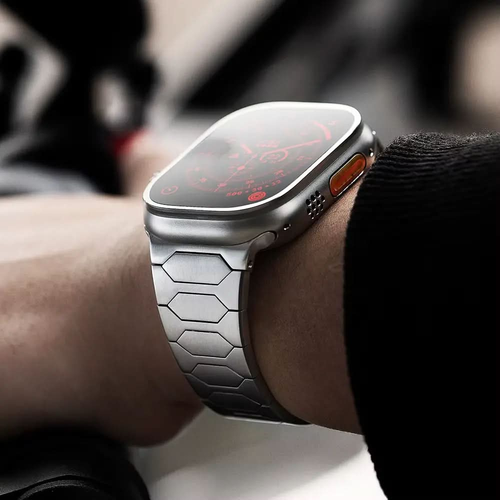
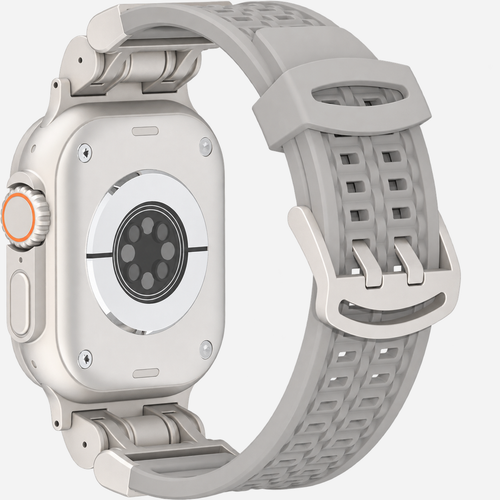
You can find an overview of the devices in the Galaxy Watch 9 selection and the Ultra 2 bands. It remains essential that the watch sits comfortably and securely on your arm.